9. Fits and stuff
When writing this course, one of the problems I ran into was, that this is not actually a programming course, but a crash course to get you started. Hence, in this section (and, to a lesser degree, in previous one) the functions used and problems shown are not there because they are fundamental or especially important, but because they are one example of many different uses of the tools in python ecosystem.
When we are done with this section, I would judge the crash course as a success, if you have learned how to start a jupyter notebook and where to look up documentation for the packages we have used so far. Learning by doing will get you really, really far. Typically, code doesn’t run on the first try - that’s what error messages are for. Your code doesn’t need to perfect or super efficient. And its not me saying that:
[…] premature optimization is the root of all evil (or at least most of it) in programming
And with that, we will once again load our default tools:
import pandas as pd
import matplotlib.pyplot as plt
import numpy as np

%matplotlib inline
9.1. Calibration curve: a polynomial fit
I kinda ran out of nice datasets in the previous section, so for this section, we are mostly looking at data from the “Instru” lab. This first example is an F-AAS determination of copper. The students prepare standards of a known copper concentration and establish a calibration curve. For the calibration each standard is measured as five repeat measurements. The data is stored in an excel document. The first sheet contains the calibration, the second the sample measurements. Luckily, the calibration data is loaded correctly right away with pandas
9.1.1. Loading data and clean up
Cu_calibration = pd.read_excel("data/Cu.xls",
                               sheet_name="calibration")
Cu_calibration
| concentration [mg/L] | Repeat 1 | Repeat 2 | Repeat 3 | Repeat 4 | Repeat 5 | |
|---|---|---|---|---|---|---|
| 0 | 0.1 | 0.001 | 0.002 | 0.002 | 0.001 | 0.001 |
| 1 | 0.3 | 0.002 | 0.002 | 0.002 | 0.003 | 0.003 |
| 2 | 1.0 | 0.009 | 0.009 | 0.009 | 0.009 | 0.009 |
| 3 | 3.0 | 0.028 | 0.027 | 0.027 | 0.028 | 0.027 |
| 4 | 10.0 | 0.089 | 0.088 | 0.089 | 0.089 | 0.089 |
| 5 | 30.0 | 0.255 | 0.257 | 0.253 | 0.258 | 0.256 |
as is are the sample measurements
Cu_samples = pd.read_excel("data/Cu.xls", sheet_name="sample")
Cu_samples
| Unnamed: 0 | Repeat 1 | Repeat 2 | Repeat 3 | Repeat 4 | Repeat 5 | |
|---|---|---|---|---|---|---|
| 0 | Ansatz 1 | 0.003 | 0.004 | 0.004 | 0.003 | 0.003 |
| 1 | Ansatz 2 | 0.003 | 0.003 | 0.003 | 0.003 | 0.003 |
| 2 | Ansatz 3 | 0.004 | 0.004 | 0.004 | 0.004 | 0.004 |
| 3 | Ansatz 4 | 0.004 | 0.004 | 0.004 | 0.004 | 0.004 |
I don’t like that the one of the columns is named “Unnamed: 0”. I also don’t like that it contains mostly redundant strings. That can be changed using .apply and a lambda function that splits each string on the space, selects the last substring and converts it to an integer. The result is then stored in the column “Ansatz”:
Cu_samples["Ansatz"] = Cu_samples["Unnamed: 0"].apply(lambda s: int(s.split()[-1]))
Cu_samples
| Unnamed: 0 | Repeat 1 | Repeat 2 | Repeat 3 | Repeat 4 | Repeat 5 | Ansatz | |
|---|---|---|---|---|---|---|---|
| 0 | Ansatz 1 | 0.003 | 0.004 | 0.004 | 0.003 | 0.003 | 1 |
| 1 | Ansatz 2 | 0.003 | 0.003 | 0.003 | 0.003 | 0.003 | 2 |
| 2 | Ansatz 3 | 0.004 | 0.004 | 0.004 | 0.004 | 0.004 | 3 |
| 3 | Ansatz 4 | 0.004 | 0.004 | 0.004 | 0.004 | 0.004 | 4 |
After checking that step worked, we can now drop the “Unnamed: 0” column.
Cu_samples = Cu_samples.set_index("Ansatz").drop(columns="Unnamed: 0")
Cu_samples
| Repeat 1 | Repeat 2 | Repeat 3 | Repeat 4 | Repeat 5 | |
|---|---|---|---|---|---|
| Ansatz | |||||
| 1 | 0.003 | 0.004 | 0.004 | 0.003 | 0.003 |
| 2 | 0.003 | 0.003 | 0.003 | 0.003 | 0.003 |
| 3 | 0.004 | 0.004 | 0.004 | 0.004 | 0.004 |
| 4 | 0.004 | 0.004 | 0.004 | 0.004 | 0.004 |
To fit our calibration curve we need one vector of x values and one vector of y values. Unfortunately, our calibration dataset is not in the right shape yet:
Cu_calibration
| concentration [mg/L] | Repeat 1 | Repeat 2 | Repeat 3 | Repeat 4 | Repeat 5 | |
|---|---|---|---|---|---|---|
| 0 | 0.1 | 0.001 | 0.002 | 0.002 | 0.001 | 0.001 |
| 1 | 0.3 | 0.002 | 0.002 | 0.002 | 0.003 | 0.003 |
| 2 | 1.0 | 0.009 | 0.009 | 0.009 | 0.009 | 0.009 |
| 3 | 3.0 | 0.028 | 0.027 | 0.027 | 0.028 | 0.027 |
| 4 | 10.0 | 0.089 | 0.088 | 0.089 | 0.089 | 0.089 |
| 5 | 30.0 | 0.255 | 0.257 | 0.253 | 0.258 | 0.256 |
Fortunately, there is the DataFrame.melt method (which I did not just learn about yesterday, when I was googling “pandas make many columns one column”. I swear.). What .melt does is the following: you tell it take these columns (the value_vars) and stack them on top of each other in a new column called value_name. Then take the names of the value_vars and put them in a new column called var_name so that the name of the value_var shows which column a value was taken from:
This code also includes list comprehension, a short way of writing a for loop that fills a list:
Cu_calibration = Cu_calibration.melt(id_vars="concentration [mg/L]",
                    value_vars=["Repeat {}".format(i) for i in range(1,6)],
                    var_name="Repeat",
                   value_name="Absorption")
Cu_calibration
| concentration [mg/L] | Repeat | Absorption | |
|---|---|---|---|
| 0 | 0.1 | Repeat 1 | 0.001 |
| 1 | 0.3 | Repeat 1 | 0.002 |
| 2 | 1.0 | Repeat 1 | 0.009 |
| 3 | 3.0 | Repeat 1 | 0.028 |
| 4 | 10.0 | Repeat 1 | 0.089 |
| 5 | 30.0 | Repeat 1 | 0.255 |
| 6 | 0.1 | Repeat 2 | 0.002 |
| 7 | 0.3 | Repeat 2 | 0.002 |
| 8 | 1.0 | Repeat 2 | 0.009 |
| 9 | 3.0 | Repeat 2 | 0.027 |
| 10 | 10.0 | Repeat 2 | 0.088 |
| 11 | 30.0 | Repeat 2 | 0.257 |
| 12 | 0.1 | Repeat 3 | 0.002 |
| 13 | 0.3 | Repeat 3 | 0.002 |
| 14 | 1.0 | Repeat 3 | 0.009 |
| 15 | 3.0 | Repeat 3 | 0.027 |
| 16 | 10.0 | Repeat 3 | 0.089 |
| 17 | 30.0 | Repeat 3 | 0.253 |
| 18 | 0.1 | Repeat 4 | 0.001 |
| 19 | 0.3 | Repeat 4 | 0.003 |
| 20 | 1.0 | Repeat 4 | 0.009 |
| 21 | 3.0 | Repeat 4 | 0.028 |
| 22 | 10.0 | Repeat 4 | 0.089 |
| 23 | 30.0 | Repeat 4 | 0.258 |
| 24 | 0.1 | Repeat 5 | 0.001 |
| 25 | 0.3 | Repeat 5 | 0.003 |
| 26 | 1.0 | Repeat 5 | 0.009 |
| 27 | 3.0 | Repeat 5 | 0.027 |
| 28 | 10.0 | Repeat 5 | 0.089 |
| 29 | 30.0 | Repeat 5 | 0.256 |
We can now plot all measurements (using crosses instead of lines)
fig = plt.figure()
ax = fig.add_subplot()
ax.plot(Cu_calibration["concentration [mg/L]"],
        Cu_calibration["Absorption"], "x")
ax.set_xlabel("concentration [mg/L]")
ax.set_ylabel("Absorption");

The numpy library contains functions for polynomial fitting. Let’s import it (there is also an older version of polynomial fits in numpy, called np.polyfit, that you will see in many examples, still)
from numpy.polynomial import polynomial
polynomial.polyfit returns an array of coefficients. The leftmost coefficient corresponds to the constant offset, the next one is the coefficient of the linear term, and so on.
fit = polynomial.polyfit(Cu_calibration["Absorption"],
                 Cu_calibration["concentration [mg/L]"],deg=1)
fit
array([ -0.12553488, 117.34201998])
We evaluate the polynomial using polynomial.polyval. The array minmax contains the smallest and the largest absorption value in the fit, we use it to plot the calibration curve on top of the measurement:
fig = plt.figure()
ax = fig.add_subplot()
ax.plot(Cu_calibration["concentration [mg/L]"],
        Cu_calibration["Absorption"], "x",label="measurements")

minmax = np.array([Cu_calibration["Absorption"].min(),Cu_calibration["Absorption"].max()])


ax.plot(polynomial.polyval(minmax, fit), minmax, label="fit")

ax.set_xlabel("concentration [mg/L]")
ax.set_ylabel("Absorption");
ax.legend();
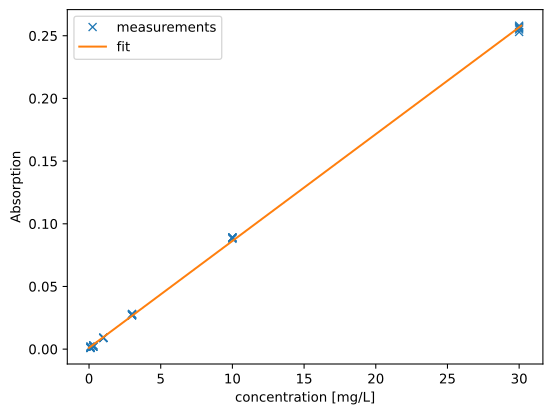
To use our calibration to quantify the copper amount in each sample, we use .applymap. This method of the DataFrame is similar to .apply but it apply a function to each element individually:
conc = Cu_samples.applymap(lambda val:polynomial.polyval(val,fit))
conc
| Repeat 1 | Repeat 2 | Repeat 3 | Repeat 4 | Repeat 5 | |
|---|---|---|---|---|---|
| Ansatz | |||||
| 1 | 0.226491 | 0.343833 | 0.343833 | 0.226491 | 0.226491 |
| 2 | 0.226491 | 0.226491 | 0.226491 | 0.226491 | 0.226491 |
| 3 | 0.343833 | 0.343833 | 0.343833 | 0.343833 | 0.343833 |
| 4 | 0.343833 | 0.343833 | 0.343833 | 0.343833 | 0.343833 |
9.2. Multivariate models
Keeping with the theme of “Instru” datasets, we next look at a multivariate calibration to determine the concentration of sucrose, glucose and fructose in water. The dataset consists of a .csv file containing IR spectra (the first column is the wavenumber axis, the remaining columns are absorption values) and another csv file that contains concentrations of the three sugars.
We load the spectra using numpy (large dataset, all numbers!) and split it into a wavenumber axis and the absorption block:
spec_data = np.genfromtxt("data/sugar_spectra.csv", unpack=True)
wn = spec_data[0]
absorption = spec_data[1:]
For the sugar concentrations we use pandas. index_col makes pandas use the first column as index
sugars = pd.read_csv("data/sugar concentration.csv",index_col=0)
This is what the dataset looks like. Since this measurement was taken on a diamond ATR using water as background, there are several regions in the spectrum showing high noise.
fig = plt.figure()
ax = fig.add_subplot()
ax.plot(wn, absorption.T);
ax.invert_xaxis()
ax.set_xlabel("wavenumber")
ax.set_ylabel("absorption / 1");
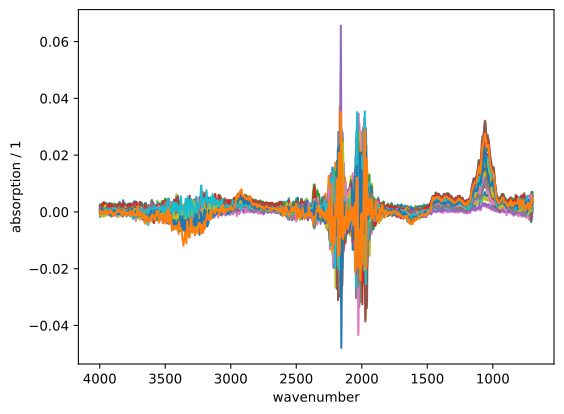
These probably won’t be useful to us anyway. Actually - because this is a student lab example - I know that most of the information is between 850 and 1500 wavenumbers. We select that range using boolean indexing. Specifically, we create an array called mask the size of our wn wavenumber axis, that is true for all elements where wn is larger than 850 and less than 1500.
mask = (wn>850)&(wn<1500)
Hint
The & here is an array-wise boolean “and”. It applies a boolean and operation to all elements of two arrays (like a + or * applied to an array). We have also seen “or” | and “not” ~ in the section on numpy arrays.
We use this mask to select a part of our wavenumber and absorptions arrays and store those in new variables called wn_cut and absorption_cut.
absorption_cut = absorption[:,mask]
wn_cut = wn[mask]
This is the set of spectra we will use for the multivariate calibration:
fig = plt.figure()
ax = fig.add_subplot()
ax.plot(wn_cut, absorption_cut.T);
ax.invert_xaxis()
ax.set_xlabel("wavenumber")
ax.set_ylabel("absorption / 1");

We start by using the old workhorse of infrared spectroscopists, the partials least squares regression (PLS). This type of multivariate regression handles the multicollinearity found in infrared datasets well. In contrast to many other types of regression that would require some pretreatment or variable selection before we chuck in our data, PLS don’t care.
We load the regression from sklearn:
from sklearn.cross_decomposition import PLSRegression
And, the typical pattern for sklearn the we’ve already seen for the PCA: First, instantiate and set the parameters. (By default, scale would be set to True, which would mean that PLS scales the absorptions for each wavenumber by the standard deviation. Usually a good idea, when each column in a dataset has a different unit or scale. However, all our columns are absorption values and don’t need to be rescaled.)
pls = PLSRegression(scale=False)
Then use the fit method to fit the dataset. We pass in our cut absorption values as X and the sugar concentrations as y:
pls.fit(absorption_cut, sugars)
PLSRegression(scale=False)
And once the pls object is fit, it can be used to predict. The prediction is returned as a numpy array
prediction_arr = pls.predict(absorption_cut)
prediction_arr
array([[ 5.84846538e+00,  2.96571538e+00,  3.23604482e+00],
       [ 7.09753198e+00,  9.32157352e+00,  8.41382842e+00],
       [ 1.83520949e+01,  2.49563678e+00,  7.29927395e+00],
       [ 3.47357995e+00,  1.50973216e+01,  1.14391758e+01],
       [ 2.10969760e+01,  6.34315557e+00,  1.11356432e+01],
       [ 1.66167271e+01,  1.24629760e+01,  1.41151621e+01],
       [ 5.50820299e+00,  2.26918564e+01,  1.78174065e+01],
       [ 2.05124497e+01,  2.02876543e+01,  2.13218503e+01],
       [ 5.27577992e+00,  3.51926832e+00,  3.44644769e+00],
       [ 9.75463973e+00,  1.13941190e+01,  1.08963658e+01],
       [ 2.34532498e+01, -3.35485683e-01,  6.98992018e+00],
       [ 1.71309645e+00,  1.54462596e+01,  1.10778110e+01],
       [ 5.84787152e+00,  2.43604838e+01,  1.91808958e+01],
       [ 2.55996999e+01,  8.27659333e+00,  1.41659778e+01],
       [ 1.61952237e+01,  1.17262548e+01,  1.34173161e+01],
       [ 1.93057331e+01,  2.08971943e+01,  2.13501770e+01],
       [ 1.41059197e-01,  2.19290643e+00,  6.45469615e-01],
       [ 5.27032709e+00,  1.02199989e+01,  8.43843324e+00],
       [ 1.86094954e+01, -1.51324738e+00,  4.40239682e+00],
       [-2.68873605e+00,  1.34280145e+01,  8.01988438e+00],
       [ 2.08183156e+01,  7.04021603e+00,  1.15567851e+01],
       [ 7.39482240e-01,  2.08904293e+01,  1.47915643e+01],
       [ 1.52687699e+01,  9.95209166e+00,  1.17680480e+01],
       [ 1.76754254e+01,  1.79068083e+01,  1.85460357e+01],
       [ 8.06807905e-01,  2.39796012e+00,  1.03328969e+00],
       [ 4.08557982e+00,  1.01068547e+01,  7.93591368e+00],
       [ 1.56284955e+01,  2.24204779e-02,  4.49465476e+00],
       [-2.01947661e+00,  1.41317958e+01,  8.78063460e+00],
       [ 1.94102245e+01,  6.69195159e+00,  1.08001988e+01],
       [ 1.42394590e+00,  2.21376228e+01,  1.59626748e+01],
       [ 1.44628073e+01,  1.03754253e+01,  1.17990585e+01],
       [ 1.73849548e+01,  1.80481744e+01,  1.85488616e+01]])
That we convert into a DataFrame with the same columns and indices as our training data.
prediction = pd.DataFrame(prediction_arr,
                          columns=sugars.columns,
                          index=sugars.index)
prediction
| Fructose | Sucrose | Glucose | |
|---|---|---|---|
| 0 | 5.848465 | 2.965715 | 3.236045 |
| 1 | 7.097532 | 9.321574 | 8.413828 |
| 2 | 18.352095 | 2.495637 | 7.299274 |
| 3 | 3.473580 | 15.097322 | 11.439176 |
| 4 | 21.096976 | 6.343156 | 11.135643 |
| 5 | 16.616727 | 12.462976 | 14.115162 |
| 6 | 5.508203 | 22.691856 | 17.817406 |
| 7 | 20.512450 | 20.287654 | 21.321850 |
| 8 | 5.275780 | 3.519268 | 3.446448 |
| 9 | 9.754640 | 11.394119 | 10.896366 |
| 10 | 23.453250 | -0.335486 | 6.989920 |
| 11 | 1.713096 | 15.446260 | 11.077811 |
| 12 | 5.847872 | 24.360484 | 19.180896 |
| 13 | 25.599700 | 8.276593 | 14.165978 |
| 14 | 16.195224 | 11.726255 | 13.417316 |
| 15 | 19.305733 | 20.897194 | 21.350177 |
| 16 | 0.141059 | 2.192906 | 0.645470 |
| 17 | 5.270327 | 10.219999 | 8.438433 |
| 18 | 18.609495 | -1.513247 | 4.402397 |
| 19 | -2.688736 | 13.428015 | 8.019884 |
| 20 | 20.818316 | 7.040216 | 11.556785 |
| 21 | 0.739482 | 20.890429 | 14.791564 |
| 22 | 15.268770 | 9.952092 | 11.768048 |
| 23 | 17.675425 | 17.906808 | 18.546036 |
| 24 | 0.806808 | 2.397960 | 1.033290 |
| 25 | 4.085580 | 10.106855 | 7.935914 |
| 26 | 15.628495 | 0.022420 | 4.494655 |
| 27 | -2.019477 | 14.131796 | 8.780635 |
| 28 | 19.410225 | 6.691952 | 10.800199 |
| 29 | 1.423946 | 22.137623 | 15.962675 |
| 30 | 14.462807 | 10.375425 | 11.799058 |
| 31 | 17.384955 | 18.048174 | 18.548862 |
However, when we compare the predicted values to the actual concentrations, the result doesn’t look great. There are large difference between those values, sometimes the deviation is three or four times the size of actual value:
prediction - sugars
| Fructose | Sucrose | Glucose | |
|---|---|---|---|
| 0 | 3.845265 | 0.965715 | 1.236045 |
| 1 | 5.094332 | 7.321574 | -11.586172 |
| 2 | -1.679905 | 0.495637 | 5.299274 |
| 3 | 1.470380 | -4.902678 | 9.439176 |
| 4 | 1.064976 | 4.343156 | -8.864357 |
| 5 | -3.415273 | -7.537024 | 12.115162 |
| 6 | 3.505003 | 2.691856 | -2.182594 |
| 7 | 0.480450 | 0.287654 | 1.321850 |
| 8 | 3.275780 | 1.535268 | 1.432448 |
| 9 | 7.754640 | 9.410119 | -9.243634 |
| 10 | 3.453250 | -2.319486 | 4.975920 |
| 11 | -0.286904 | -4.393740 | 9.063811 |
| 12 | 3.847872 | 4.520484 | -0.959104 |
| 13 | 5.599700 | 6.292593 | -5.974022 |
| 14 | -3.804776 | -8.113745 | 11.403316 |
| 15 | -0.694267 | 1.057194 | 1.210177 |
| 16 | -1.858941 | 0.192906 | -1.354530 |
| 17 | 3.270327 | 8.219999 | -11.561567 |
| 18 | -1.390505 | -3.513247 | 2.402397 |
| 19 | -4.688736 | -6.571985 | 6.019884 |
| 20 | 0.818316 | 5.040216 | -8.443215 |
| 21 | -1.260518 | 0.890429 | -5.208436 |
| 22 | -4.731230 | -10.047908 | 9.768048 |
| 23 | -2.324575 | -2.093192 | -1.453964 |
| 24 | -1.205192 | 0.404960 | -0.971510 |
| 25 | 2.073580 | 8.113855 | -12.112086 |
| 26 | -4.491505 | -1.970580 | 2.489855 |
| 27 | -4.031477 | -5.796204 | 6.775835 |
| 28 | -0.709775 | 4.698952 | -9.247801 |
| 29 | -0.588054 | 2.209623 | -4.085325 |
| 30 | -5.657193 | -9.552575 | 9.794258 |
| 31 | -2.735045 | -1.879826 | -1.499138 |
Fortunately, the PLS has one parameter that we can optimize to get a better fit: the number of components (components here means orthogonal directions in the original data set, akin to the components in the PCA). More components allow closer modeling of the data.
To see how the number of components improves how well the PLS mode predicts sugar concentrations, we need a better way to check the quality of the model then to look at a table of all errors. sklearn provides an assortment of metrics in that do just that: they provide a single value that states how close to the actual value the predictions are. We are using the mean_squared_error here. A mean_squared_error of 0 describes a perfect fit
from sklearn.metrics import mean_squared_error
When we want to evaluate and improve the quality of a model, there is one more thing we need to understand: when we use the metric to evaluate how well our mode predicts the data we trained it on (training set), then we will tend to get a model that is really good a predicting values from the training set but will miserable for all other data. We get a more realistic idea of the performance of our model if we split the training set into two parts and use only one of them to train and the other to test the performance. This is called cross validation. sklearn provides several methods for splitting the dataset in sklearn.model_selection. We will use KFold. This strategy splits the dataset into \(k\) batches. In each iteration, one of the batches is used to test the mode, and the others are used to train.
from sklearn.model_selection import KFold
Let’s see how the train and test set metric changes as we increase the number of components. We create to lists to hold the data:
metric_train = []
metric_test = []
To test at one number of components, we need to iterate over all \(k\) splits, fit the model each time and determine the score. We will package that in a function, that takes a number of components, an X and y matrix as input and applies 5 cross validations.
def cv_components(n_components, X, y):
    kfold = KFold(n_splits=5, shuffle=True, random_state=42)
    pls = PLSRegression(n_components=n_components, scale=False)
    train = []
    test = []
    for train_index, test_index in kfold.split(X):
        X_train, y_train = X[train_index], y.loc[train_index]
        X_test, y_test = X[test_index], y.loc[test_index]
        pls = pls.fit(X_train,y_train)
        train.append(mean_squared_error(y_train,
                              pls.predict(X_train)))
        test.append(mean_squared_error(y_test,
                              pls.predict(X_test)))
    return train, test
We loop the function over n_components between 1 and 10 and capture the results in the lists we have crated before:
all_n_components = list(range(1,11))
for n_components in all_n_components:
    train, test = cv_components(n_components,
                                absorption_cut,
                                sugars)
    metric_train.append(train)
    metric_test.append(test)
To make them easier to work with, the lists are now converted to numpy arrays:
metric_train = np.array(metric_train)
metric_test = np.array(metric_test)
And finally, we can plot mean values
fig = plt.figure()
ax = fig.add_subplot()
ax.plot(all_n_components,  np.mean(metric_train,axis=1), label="train")
ax.plot(all_n_components,  np.mean(metric_test,axis=1), label="test")
plt.legend()
ax.set_xlabel("components")
ax.set_ylabel(r"mean squared error");
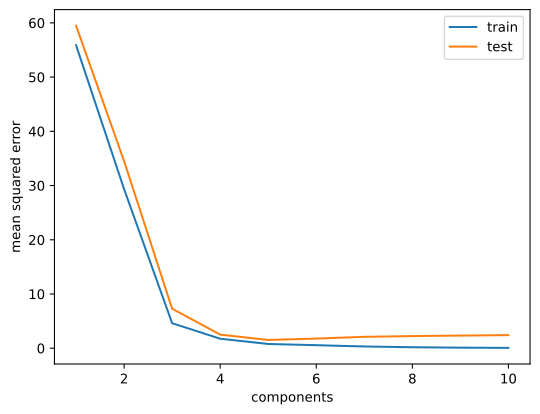
As we can see the metric for training and test set improved rapidly at the beginning. However, at around 5-7 components the metric for the test set is actually starting to go down a bit (this is the point where our model starts to get worse at generalizing to data it hasn’t seen yet). In any case, the PLS with 7 will perform much better than what we had before.
This procedure of optimizing a parameter of the model, performing cross validation and selecting the best model is also available as in form of GridSearchCV in sklearn:
from sklearn.model_selection import GridSearchCV
GridSearchCV takes a model as an input, then a dictionary param_grid that specifies all values for the parameters that should be tested in our case only “n_components”, a scorer and cross validation. A scorer is just a metric with a bit of a wrapper around. We can convert the mean_squared_error into a scorer using make_scorer:
from sklearn.metrics import make_scorer
scorer = make_scorer(mean_squared_error, greater_is_better=False)
Then we select the cross validation strategy - KFold
cv = KFold(n_splits=5, shuffle=True, random_state=42)
And create an instance of GridSearchCV
pls = PLSRegression(scale=False)

gcv = GridSearchCV(pls,
             param_grid={"n_components":list(range(1,21))},
             scoring=scorer,
            cv=cv)
gcv
GridSearchCV(cv=KFold(n_splits=5, random_state=42, shuffle=True),
             estimator=PLSRegression(scale=False),
             param_grid={'n_components': [1, 2, 3, 4, 5, 6, 7, 8, 9, 10, 11, 12,
                                          13, 14, 15, 16, 17, 18, 19, 20]},
             scoring=make_scorer(mean_squared_error, greater_is_better=False))
Finally, we use gcv to .fit our dataset
gcv.fit(absorption_cut, y=sugars)
GridSearchCV(cv=KFold(n_splits=5, random_state=42, shuffle=True),
             estimator=PLSRegression(scale=False),
             param_grid={'n_components': [1, 2, 3, 4, 5, 6, 7, 8, 9, 10, 11, 12,
                                          13, 14, 15, 16, 17, 18, 19, 20]},
             scoring=make_scorer(mean_squared_error, greater_is_better=False))
The best model is available as gcv.best_estimator_. It seems, the best
gcv.best_estimator_
PLSRegression(n_components=5, scale=False)
The best estimator for our dataset has 5 components.
It often makes sense to check all the cross validation results to see if the “best” estimator is the result of some fluke or a general trend. We convert the gcv.cv_results_ into a DataFrame to make them easier to handle:
gcv_results = pd.DataFrame(gcv.cv_results_)

gcv_results
| mean_fit_time | std_fit_time | mean_score_time | std_score_time | param_n_components | params | split0_test_score | split1_test_score | split2_test_score | split3_test_score | split4_test_score | mean_test_score | std_test_score | rank_test_score | |
|---|---|---|---|---|---|---|---|---|---|---|---|---|---|---|
| 0 | 0.002977 | 0.000655 | 0.001625 | 0.000037 | 1 | {'n_components': 1} | -48.545094 | -58.066011 | -63.409419 | -64.216270 | -63.156637 | -59.478686 | 5.881527 | 20 |
| 1 | 0.003228 | 0.000183 | 0.001594 | 0.000008 | 2 | {'n_components': 2} | -41.332714 | -38.451381 | -32.150809 | -31.454395 | -29.110431 | -34.499946 | 4.607413 | 19 |
| 2 | 0.003567 | 0.000159 | 0.001632 | 0.000022 | 3 | {'n_components': 3} | -13.463327 | -7.979911 | -6.900035 | -4.014426 | -4.065309 | -7.284601 | 3.460228 | 18 |
| 3 | 0.003835 | 0.000181 | 0.012798 | 0.022345 | 4 | {'n_components': 4} | -1.130712 | -3.307423 | -4.412787 | -1.399914 | -2.296724 | -2.509512 | 1.219565 | 9 |
| 4 | 0.004169 | 0.000149 | 0.001688 | 0.000034 | 5 | {'n_components': 5} | -0.844244 | -1.778812 | -2.841950 | -0.786899 | -1.376876 | -1.525756 | 0.752188 | 1 |
| 5 | 0.005023 | 0.000307 | 0.001706 | 0.000081 | 6 | {'n_components': 6} | -0.969771 | -2.036483 | -2.807773 | -0.936962 | -2.149403 | -1.780078 | 0.724671 | 2 |
| 6 | 0.005409 | 0.000305 | 0.001699 | 0.000046 | 7 | {'n_components': 7} | -1.063460 | -2.363377 | -3.053623 | -1.327435 | -2.696548 | -2.100889 | 0.775358 | 3 |
| 7 | 0.006141 | 0.000492 | 0.001693 | 0.000035 | 8 | {'n_components': 8} | -1.231006 | -2.367161 | -3.142022 | -1.542247 | -2.917713 | -2.240030 | 0.747534 | 4 |
| 8 | 0.006612 | 0.000386 | 0.001682 | 0.000020 | 9 | {'n_components': 9} | -1.356007 | -2.408202 | -3.131088 | -1.825171 | -2.944411 | -2.332976 | 0.667657 | 5 |
| 9 | 0.007283 | 0.000601 | 0.001731 | 0.000027 | 10 | {'n_components': 10} | -1.446502 | -2.416616 | -3.179046 | -1.672533 | -3.370647 | -2.417069 | 0.772820 | 6 |
| 10 | 0.008347 | 0.000630 | 0.001802 | 0.000045 | 11 | {'n_components': 11} | -1.425645 | -2.390100 | -3.270158 | -1.766760 | -3.571948 | -2.484922 | 0.830065 | 7 |
| 11 | 0.008866 | 0.000470 | 0.001790 | 0.000038 | 12 | {'n_components': 12} | -1.415156 | -2.454737 | -3.275856 | -1.784956 | -3.575774 | -2.501296 | 0.830597 | 8 |
| 12 | 0.009851 | 0.000834 | 0.001744 | 0.000024 | 13 | {'n_components': 13} | -1.449223 | -2.492004 | -3.318894 | -1.796965 | -3.627127 | -2.536843 | 0.840556 | 10 |
| 13 | 0.010429 | 0.000736 | 0.001800 | 0.000052 | 14 | {'n_components': 14} | -1.438591 | -2.501979 | -3.376938 | -1.795340 | -3.581789 | -2.538927 | 0.843190 | 11 |
| 14 | 0.011031 | 0.000882 | 0.001842 | 0.000080 | 15 | {'n_components': 15} | -1.422812 | -2.496264 | -3.394167 | -1.838856 | -3.630443 | -2.556508 | 0.855445 | 12 |
| 15 | 0.013136 | 0.002752 | 0.002207 | 0.000499 | 16 | {'n_components': 16} | -1.415170 | -2.512702 | -3.378424 | -1.883139 | -3.618698 | -2.561627 | 0.843998 | 13 |
| 16 | 0.012654 | 0.001259 | 0.001853 | 0.000103 | 17 | {'n_components': 17} | -1.413881 | -2.520264 | -3.391660 | -1.871239 | -3.620335 | -2.563476 | 0.849172 | 14 |
| 17 | 0.012361 | 0.000993 | 0.001764 | 0.000026 | 18 | {'n_components': 18} | -1.413481 | -2.525459 | -3.406376 | -1.858064 | -3.635066 | -2.567689 | 0.857932 | 17 |
| 18 | 0.013039 | 0.001267 | 0.001728 | 0.000038 | 19 | {'n_components': 19} | -1.419565 | -2.516107 | -3.398196 | -1.855727 | -3.647709 | -2.567461 | 0.858362 | 16 |
| 19 | 0.013483 | 0.001162 | 0.001793 | 0.000031 | 20 | {'n_components': 20} | -1.415083 | -2.513809 | -3.400481 | -1.851188 | -3.654173 | -2.566947 | 0.862411 | 15 |
The plot of the test score below looks identical to the one we had produced before. I used an .errorbar plot to also show the standard deviation of scores. Overall, it looks like the number of components actually is reasonable. The scores actually a d minimum in at that point:
fig = plt.figure()
ax = fig.add_subplot()
ax.errorbar(gcv_results["param_n_components"], -gcv_results["mean_test_score"], gcv_results["std_test_score"]);

We can also check for more than one parameter with GridSearchCV. We just add that parameter to the param_grid dictionary. Maybe we want to check it scaling actually improves the results in our cased:
gcv = GridSearchCV(pls,
             param_grid={"n_components":list(range(1,21)), "scale":[True, False]},
             scoring=scorer,
            cv=cv)
gcv.fit(absorption_cut, sugars)
gcv.best_estimator_
PLSRegression(n_components=5, scale=False)
And the answer is “no”, the best estimator is still the one with 5 components and no scaling.
We will have another look at the cv_results_ from this new run.
gcv_results = pd.DataFrame(gcv.cv_results_)
gcv_results
| mean_fit_time | std_fit_time | mean_score_time | std_score_time | param_n_components | param_scale | params | split0_test_score | split1_test_score | split2_test_score | split3_test_score | split4_test_score | mean_test_score | std_test_score | rank_test_score | |
|---|---|---|---|---|---|---|---|---|---|---|---|---|---|---|---|
| 0 | 0.003719 | 0.000669 | 0.002001 | 0.000359 | 1 | True | {'n_components': 1, 'scale': True} | -54.698458 | -62.046749 | -68.166944 | -70.095853 | -69.120858 | -64.825772 | 5.790862 | 40 |
| 1 | 0.002519 | 0.000029 | 0.001579 | 0.000033 | 1 | False | {'n_components': 1, 'scale': False} | -48.545094 | -58.066011 | -63.409419 | -64.216270 | -63.156637 | -59.478686 | 5.881527 | 39 |
| 2 | 0.003284 | 0.000208 | 0.001589 | 0.000022 | 2 | True | {'n_components': 2, 'scale': True} | -52.097918 | -54.574401 | -55.639906 | -39.294977 | -35.817363 | -47.484913 | 8.261372 | 38 |
| 3 | 0.003182 | 0.000216 | 0.001634 | 0.000017 | 2 | False | {'n_components': 2, 'scale': False} | -41.332714 | -38.451381 | -32.150809 | -31.454395 | -29.110431 | -34.499946 | 4.607413 | 36 |
| 4 | 0.004255 | 0.000353 | 0.001655 | 0.000023 | 3 | True | {'n_components': 3, 'scale': True} | -53.143825 | -34.523533 | -37.614435 | -26.322474 | -30.598067 | -36.440467 | 9.171286 | 37 |
| 5 | 0.003607 | 0.000137 | 0.001702 | 0.000073 | 3 | False | {'n_components': 3, 'scale': False} | -13.463327 | -7.979911 | -6.900035 | -4.014426 | -4.065309 | -7.284601 | 3.460228 | 35 |
| 6 | 0.004655 | 0.000423 | 0.001712 | 0.000087 | 4 | True | {'n_components': 4, 'scale': True} | -1.724367 | -4.231388 | -5.844991 | -3.397973 | -3.141838 | -3.668111 | 1.355298 | 34 |
| 7 | 0.003961 | 0.000223 | 0.001698 | 0.000035 | 4 | False | {'n_components': 4, 'scale': False} | -1.130712 | -3.307423 | -4.412787 | -1.399914 | -2.296724 | -2.509512 | 1.219565 | 9 |
| 8 | 0.005026 | 0.000368 | 0.001770 | 0.000036 | 5 | True | {'n_components': 5, 'scale': True} | -1.568588 | -2.471745 | -4.012460 | -3.293607 | -2.497108 | -2.768701 | 0.827609 | 21 |
| 9 | 0.004258 | 0.000230 | 0.001718 | 0.000039 | 5 | False | {'n_components': 5, 'scale': False} | -0.844244 | -1.778812 | -2.841950 | -0.786899 | -1.376876 | -1.525756 | 0.752188 | 1 |
| 10 | 0.005596 | 0.000355 | 0.001758 | 0.000048 | 6 | True | {'n_components': 6, 'scale': True} | -1.377297 | -2.398350 | -3.862859 | -3.046570 | -3.051359 | -2.747287 | 0.827667 | 20 |
| 11 | 0.005504 | 0.000949 | 0.001860 | 0.000118 | 6 | False | {'n_components': 6, 'scale': False} | -0.969771 | -2.036483 | -2.807773 | -0.936962 | -2.149403 | -1.780078 | 0.724671 | 2 |
| 12 | 0.005986 | 0.000280 | 0.001778 | 0.000025 | 7 | True | {'n_components': 7, 'scale': True} | -1.239088 | -2.421301 | -3.558917 | -2.821641 | -3.215091 | -2.651208 | 0.802233 | 18 |
| 13 | 0.005585 | 0.000299 | 0.001828 | 0.000059 | 7 | False | {'n_components': 7, 'scale': False} | -1.063460 | -2.363377 | -3.053623 | -1.327435 | -2.696548 | -2.100889 | 0.775358 | 3 |
| 14 | 0.006611 | 0.000250 | 0.001914 | 0.000054 | 8 | True | {'n_components': 8, 'scale': True} | -1.317916 | -2.397072 | -3.718937 | -2.707687 | -3.594688 | -2.747260 | 0.875159 | 19 |
| 15 | 0.006402 | 0.000414 | 0.001912 | 0.000081 | 8 | False | {'n_components': 8, 'scale': False} | -1.231006 | -2.367161 | -3.142022 | -1.542247 | -2.917713 | -2.240030 | 0.747534 | 4 |
| 16 | 0.007335 | 0.000502 | 0.001946 | 0.000064 | 9 | True | {'n_components': 9, 'scale': True} | -1.382980 | -2.490851 | -3.625133 | -2.668780 | -3.707565 | -2.775062 | 0.851134 | 22 |
| 17 | 0.006888 | 0.000517 | 0.001920 | 0.000056 | 9 | False | {'n_components': 9, 'scale': False} | -1.356007 | -2.408202 | -3.131088 | -1.825171 | -2.944411 | -2.332976 | 0.667657 | 5 |
| 18 | 0.008268 | 0.000373 | 0.002009 | 0.000022 | 10 | True | {'n_components': 10, 'scale': True} | -1.440215 | -2.685522 | -3.853001 | -2.470417 | -3.491591 | -2.788149 | 0.843464 | 23 |
| 19 | 0.007590 | 0.000570 | 0.001991 | 0.000044 | 10 | False | {'n_components': 10, 'scale': False} | -1.446502 | -2.416616 | -3.179046 | -1.672533 | -3.370647 | -2.417069 | 0.772820 | 6 |
| 20 | 0.008992 | 0.000209 | 0.002035 | 0.000050 | 11 | True | {'n_components': 11, 'scale': True} | -1.257625 | -2.834232 | -3.788406 | -2.391889 | -3.684424 | -2.791315 | 0.927946 | 24 |
| 21 | 0.008591 | 0.000637 | 0.002030 | 0.000058 | 11 | False | {'n_components': 11, 'scale': False} | -1.425645 | -2.390100 | -3.270158 | -1.766760 | -3.571948 | -2.484922 | 0.830065 | 7 |
| 22 | 0.009493 | 0.000453 | 0.002081 | 0.000080 | 12 | True | {'n_components': 12, 'scale': True} | -1.517545 | -2.842888 | -3.724798 | -2.398101 | -3.774634 | -2.851593 | 0.848517 | 25 |
| 23 | 0.009092 | 0.000518 | 0.002018 | 0.000040 | 12 | False | {'n_components': 12, 'scale': False} | -1.415156 | -2.454737 | -3.275856 | -1.784956 | -3.575774 | -2.501296 | 0.830597 | 8 |
| 24 | 0.010039 | 0.000542 | 0.002088 | 0.000030 | 13 | True | {'n_components': 13, 'scale': True} | -1.572594 | -2.964220 | -3.831789 | -2.473844 | -3.831157 | -2.934721 | 0.857555 | 27 |
| 25 | 0.010022 | 0.000788 | 0.001940 | 0.000114 | 13 | False | {'n_components': 13, 'scale': False} | -1.449223 | -2.492004 | -3.318894 | -1.796965 | -3.627127 | -2.536843 | 0.840556 | 10 |
| 26 | 0.010459 | 0.000482 | 0.002074 | 0.000032 | 14 | True | {'n_components': 14, 'scale': True} | -1.595299 | -2.988451 | -3.941710 | -2.267406 | -3.885289 | -2.935631 | 0.912124 | 28 |
| 27 | 0.010518 | 0.000848 | 0.001929 | 0.000117 | 14 | False | {'n_components': 14, 'scale': False} | -1.438591 | -2.501979 | -3.376938 | -1.795340 | -3.581789 | -2.538927 | 0.843190 | 11 |
| 28 | 0.010949 | 0.000548 | 0.001839 | 0.000035 | 15 | True | {'n_components': 15, 'scale': True} | -1.564222 | -3.043631 | -3.818043 | -2.285135 | -3.944452 | -2.931097 | 0.906845 | 26 |
| 29 | 0.010983 | 0.000893 | 0.001870 | 0.000068 | 15 | False | {'n_components': 15, 'scale': False} | -1.422812 | -2.496264 | -3.394167 | -1.838856 | -3.630443 | -2.556508 | 0.855445 | 12 |
| 30 | 0.012034 | 0.000833 | 0.002086 | 0.000207 | 16 | True | {'n_components': 16, 'scale': True} | -1.533037 | -3.078306 | -3.825852 | -2.343480 | -4.016826 | -2.959500 | 0.927027 | 29 |
| 31 | 0.012009 | 0.000846 | 0.002107 | 0.000080 | 16 | False | {'n_components': 16, 'scale': False} | -1.415170 | -2.512702 | -3.378424 | -1.883139 | -3.618698 | -2.561627 | 0.843998 | 13 |
| 32 | 0.012871 | 0.000914 | 0.002168 | 0.000008 | 17 | True | {'n_components': 17, 'scale': True} | -1.524799 | -3.075210 | -3.900531 | -2.309325 | -4.049744 | -2.971922 | 0.955812 | 30 |
| 33 | 0.012874 | 0.001595 | 0.002062 | 0.000148 | 17 | False | {'n_components': 17, 'scale': False} | -1.413881 | -2.520264 | -3.391660 | -1.871239 | -3.620335 | -2.563476 | 0.849172 | 14 |
| 34 | 0.012565 | 0.000658 | 0.001923 | 0.000071 | 18 | True | {'n_components': 18, 'scale': True} | -1.557934 | -3.080677 | -3.920539 | -2.312594 | -4.031202 | -2.980589 | 0.945249 | 31 |
| 35 | 0.012578 | 0.001085 | 0.001923 | 0.000040 | 18 | False | {'n_components': 18, 'scale': False} | -1.413481 | -2.525459 | -3.406376 | -1.858064 | -3.635066 | -2.567689 | 0.857932 | 17 |
| 36 | 0.013247 | 0.000744 | 0.001900 | 0.000033 | 19 | True | {'n_components': 19, 'scale': True} | -1.548109 | -3.085797 | -3.952162 | -2.307434 | -4.029778 | -2.984656 | 0.955079 | 32 |
| 37 | 0.013405 | 0.001026 | 0.002138 | 0.000442 | 19 | False | {'n_components': 19, 'scale': False} | -1.419565 | -2.516107 | -3.398196 | -1.855727 | -3.647709 | -2.567461 | 0.858362 | 16 |
| 38 | 0.013578 | 0.000616 | 0.001901 | 0.000020 | 20 | True | {'n_components': 20, 'scale': True} | -1.531816 | -3.086763 | -3.959442 | -2.319961 | -4.051912 | -2.989979 | 0.964582 | 33 |
| 39 | 0.013665 | 0.001188 | 0.001830 | 0.000047 | 20 | False | {'n_components': 20, 'scale': False} | -1.415083 | -2.513809 | -3.400481 | -1.851188 | -3.654173 | -2.566947 | 0.862411 | 15 |
A new column has been added that contains the scale parameter. We can use boolean indexing on the DataFrame to grab all rows where scaling was on or off:
fig = plt.figure()
ax = fig.add_subplot()
scale_true = gcv_results[gcv_results["param_scale"]==True]
ax.errorbar(scale_true["param_n_components"],
            -scale_true["mean_test_score"],
            scale_true["std_test_score"], label="Scaling on");
scale_false = gcv_results[gcv_results["param_scale"]==False]
ax.errorbar(scale_false["param_n_components"],
            -scale_false["mean_test_score"],
            scale_false["std_test_score"], label="Scaling off");
ax.legend()
<matplotlib.legend.Legend at 0x7f1ded954b20>
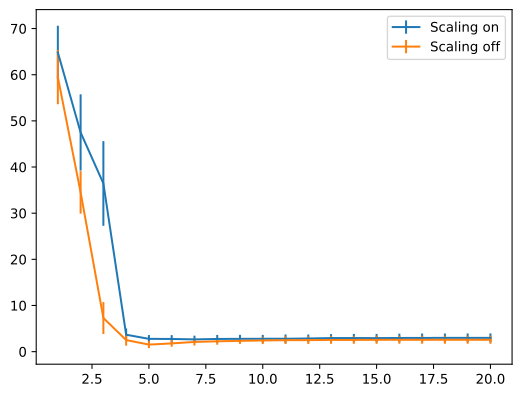
The scaled models consistently perform worse than the unscaled ones - but we knew that already.
sklearn has an excellent documentation including a very approachable user guide that explains and compares algorithms and how to use them. You can find it at https://scikit-learn.org/stable/user_guide.html and I can only recommend scrolling through it.
There is one more tool in sklearn that I want to specifically point out here, though, the pipeline. The pipeline chains together preprocessing and fitting in a single object. From the outside, the pipeline looks like any other sklearn model: it has the .fit and .predict methods and can be optimized using GridSearchCV, but whenever you call either of these methods, it will not only fit/predict using the final step, the actual fitting algorithm but also fit/or apply preprocessing steps.
That is important, because preprocessing, when done incorrectly can actually defeat the purpose of cross validation through an effect called “leakage”: basically, whenever preprocessing uses information from multiple rows of your X matrix (e.g. to scale by the standard deviation of a column), it must not be fit applied to the test data in cross validation, only to the training data, otherwise, the fitting algorithm is getting (indirect) information on your test set as well and your cross validation score will look better than it actually is.
We can build a pipeline using the make_pipeline function:
from sklearn.pipeline import make_pipeline
Since PLS didn’t need preprocessing, we will demonstrate the the use of a pipeline with another regressor, LASSO. LASSO performs a least squares fit but tries to use as few variables as possible for it. We will preprocess the dataset using a PCA to instead of looking at absorptions at different wavenumbers, we will be fitting components. Before applying the PCA, we will also mean center the data:
We import PCA and LASSO
from sklearn.decomposition import PCA
from sklearn.linear_model import Lasso
and then make the pipeline
pca = PCA()
lasso = Lasso()

lasso_pipe = make_pipeline(pca, lasso)
lasso_pipe
Pipeline(steps=[('pca', PCA()), ('lasso', Lasso())])
The parameter we want to optimize here is the regularization paramter \(\alpha\). Higher values of \(\alpha\) mean that LASSO will use fewer variables/columns, lower values mean it will use more. With \(\alpha=0\) it uses all of them.
In the pipeline, the parameters of each step are accessible from the top level. To make each parameter unique (in case two steps have parameters with the same name) they are prefixed with the name of the step and two underscores __. The .get_params method shows all parameters of the pipe. \(\alpha\) is now called lasso__alpha
lasso_pipe.get_params()
{'memory': None,
 'steps': [('pca', PCA()), ('lasso', Lasso())],
 'verbose': False,
 'pca': PCA(),
 'lasso': Lasso(),
 'pca__copy': True,
 'pca__iterated_power': 'auto',
 'pca__n_components': None,
 'pca__random_state': None,
 'pca__svd_solver': 'auto',
 'pca__tol': 0.0,
 'pca__whiten': False,
 'lasso__alpha': 1.0,
 'lasso__copy_X': True,
 'lasso__fit_intercept': True,
 'lasso__max_iter': 1000,
 'lasso__normalize': False,
 'lasso__positive': False,
 'lasso__precompute': False,
 'lasso__random_state': None,
 'lasso__selection': 'cyclic',
 'lasso__tol': 0.0001,
 'lasso__warm_start': False}
We create a GridSearchCV object for lasso_pipe that searches the optimum lasso__alpha. The spacing of alphas will be exponential between \(10^{-3}\) and \(0\):
cv = KFold(n_splits=5, shuffle=True, random_state=42)
scorer = make_scorer(mean_squared_error, greater_is_better=False)

lasso_gcv = GridSearchCV(lasso_pipe,
                        param_grid={"lasso__alpha":10**np.linspace(-5,-2,100)},
                        cv=cv,
                        scoring=scorer)
And then fit it:
lasso_gcv.fit(absorption_cut, sugars)
GridSearchCV(cv=KFold(n_splits=5, random_state=42, shuffle=True),
             estimator=Pipeline(steps=[('pca', PCA()), ('lasso', Lasso())]),
             param_grid={'lasso__alpha': array([1.00000000e-05, 1.07226722e-05, 1.14975700e-05, 1.23284674e-05,
       1.32194115e-05, 1.41747416e-05, 1.51991108e-05, 1.62975083e-05,
       1.74752840e-05, 1.87381742e-05, 2.00923300e-05, 2.15443469e-05,
       2.31012970e-0...
       2.65608778e-03, 2.84803587e-03, 3.05385551e-03, 3.27454916e-03,
       3.51119173e-03, 3.76493581e-03, 4.03701726e-03, 4.32876128e-03,
       4.64158883e-03, 4.97702356e-03, 5.33669923e-03, 5.72236766e-03,
       6.13590727e-03, 6.57933225e-03, 7.05480231e-03, 7.56463328e-03,
       8.11130831e-03, 8.69749003e-03, 9.32603347e-03, 1.00000000e-02])},
             scoring=make_scorer(mean_squared_error, greater_is_better=False))
and generate the results DataFrame
gcv_results = pd.DataFrame(lasso_gcv.cv_results_)
The best estimator looks as follows:
lasso_gcv.best_estimator_
Pipeline(steps=[('pca', PCA()), ('lasso', Lasso(alpha=0.00026560877829466864))])
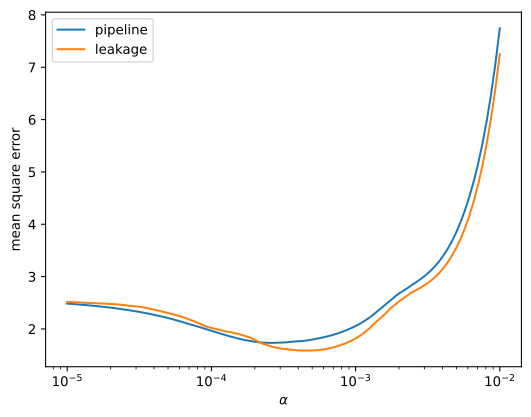
And it is right at the minimum of the dip in cross validation scores. Looks reasonable.
fig = plt.figure()
ax = fig.add_subplot()
ax.plot(gcv_results["param_lasso__alpha"],
            -gcv_results["mean_test_score"]);
ax.axvline(lasso_gcv.best_estimator_.get_params()["lasso__alpha"], color="black")
ax.set_xscale("log")
ax.set_xlabel(r"$\alpha$")
ax.set_ylabel("mean square error");

Briefly, I want to show how leakage would affect the results in this example. We perform another grid search, but this time without PCA in the pipeline. Instead, we apply PCA to the whole dataset at once, before cross validation
cv = KFold(n_splits=5, shuffle=True, random_state=42)
scorer = make_scorer(mean_squared_error, greater_is_better=False)

pca=PCA()
lasso = Lasso()

lasso_leakage_gcv = GridSearchCV(lasso,
                        param_grid={"alpha":10**np.linspace(-5,-2,100)},
                        cv=cv,
                        scoring=scorer)
lasso_leakage_gcv.fit(pca.fit_transform(absorption_cut), sugars)

gcv_results_leakage = pd.DataFrame(lasso_leakage_gcv.cv_results_)
As the following plot shows, the incorrectly performed cross validation gives a higher \( \alpha\) and a better optimum score.
fig = plt.figure()
ax = fig.add_subplot()
ax.plot(gcv_results["param_lasso__alpha"],
            -gcv_results["mean_test_score"], label="pipeline");
ax.plot(gcv_results_leakage["param_alpha"],
            -gcv_results_leakage["mean_test_score"], label="leakage");
ax.set_xscale("log")
ax.set_xlabel(r"$\alpha$")
ax.set_ylabel("mean square error");
plt.legend();
9.3. Unsupervised learning
Unsupervised learning encompasses methods that can find structure in the data by themselves. We give them a dataset and they find - e.g. spectra that look similar or samples that had similar compositions.
The dataset I am using here is an image of different polymers taken with an IR microscope. It has 64x64 pixels, each of which has an FTIR spectrum assigned to it. (This example might not run on the jupyterlab server due to the large amount of memory it needs).
bead = np.genfromtxt("data/bead1.dpt")
wn = bead[0]
A = bead[1:]
64x64 pixels is small for an image, nevertheless, we are already dealing with more than 3600 spectra. Plotting all of them is already a challenge. And we don’t really see much in the dataset either:
fig = plt.figure()
ax_specs = fig.add_subplot()
ax_specs.plot(wn, A[::10].T, color="blue", alpha=.1, linewidth=.1);
ax_specs.invert_xaxis()
ax_specs.set_xlabel("wavenumber")
ax_specs.set_ylabel("ATR absorption");
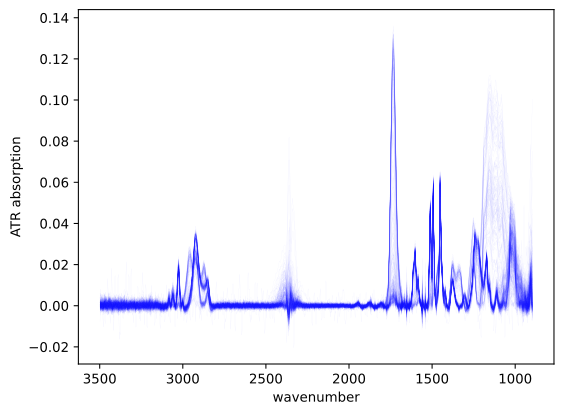
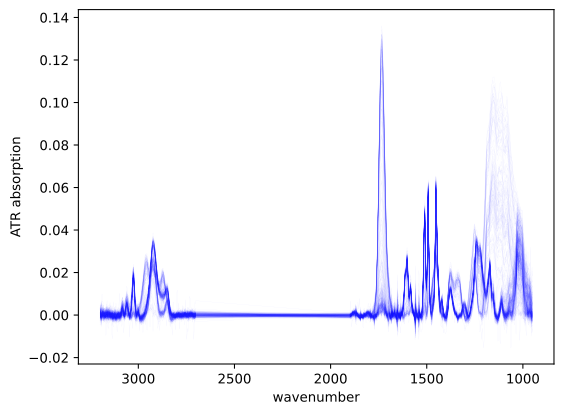
However, at least that plot shows us that we can remove the part of the spectrum between 1900 and 2700 wavenumbers as well as above 3200. We use element wise boolean operators to create a mask of all wavenumber we want to keep
mask = ~((wn>1900)&(wn<2700)|(wn>3200)|(wn<950))
and then cut down wn and A (we are overwriting the variables here to save some memory)
wn = wn[mask]
A = A[:,mask]
fig = plt.figure()
ax_specs = fig.add_subplot()
ax_specs.plot(wn, A[::10].T, color="blue", alpha=.1, linewidth=.1);
ax_specs.invert_xaxis()
ax_specs.set_xlabel("wavenumber")
ax_specs.set_ylabel("ATR absorption");
The algorithm I will use here is called hierarchical cluster analysis (HCA) or agglomerative clustering. It takes the dataset and starts looking for two spectra that are closest together. The distance between spectra here means (for example) the Euclidian norm, i.e. how we learned to calculate the distance between two points in high school.
The two closes points are then put into a “cluster” and replaced in the dataset by a single average spectrum. Then the algorithm looks for the next two closest spectra in this new dataset. That might include the new cluster or not. And so on, until finally the last two remaining clusters have been linked.
The output of this algorithm is a “dendrogram” (think origin of species) that shows how spectra were linked and what their distances were.
First, let’s import the algorithm
from sklearn.cluster import AgglomerativeClustering
We create and fit he model - as have been doing for PLS and LASSO:
model = AgglomerativeClustering(distance_threshold=0, n_clusters=None)
model = model.fit(A)
To plot the dendrogram, I am using one of the code examples from sklearn (with slight modifications). The dendrogram below doesn’t show all clusters but only the ones furthest apart. The number along the x-axis show how many spectra are contained in each cluster point:
from scipy.cluster.hierarchy import dendrogram


def plot_dendrogram(model, **kwargs):
    # Create linkage matrix and then plot the dendrogram

    # create the counts of samples under each node
    counts = np.zeros(model.children_.shape[0])
    n_samples = len(model.labels_)
    for i, merge in enumerate(model.children_):
        current_count = 0
        for child_idx in merge:
            if child_idx < n_samples:
                current_count += 1  # leaf node
            else:
                current_count += counts[child_idx - n_samples]
        counts[i] = current_count

    linkage_matrix = np.column_stack([model.children_, model.distances_,
                                      counts]).astype(float)

    # Plot the corresponding dendrogram
    dendrogram(linkage_matrix, **kwargs)


fig_dendro = plt.figure()
ax = fig_dendro.add_subplot()


plot_dendrogram(model, truncate_mode='level', p=3, ax=ax, leaf_rotation=30)
ax.set_xlabel("Number of points in node (or index of point if no parenthesis).");
ax.set_ylabel("distance");
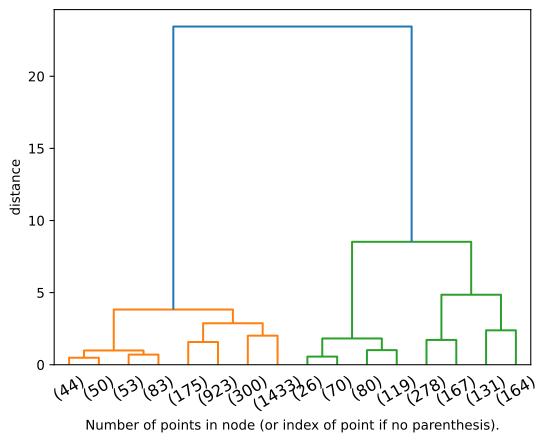
The dendrogram shows that there are three quite distant clusters (their horizontal bars are quite high up). We can now change the mode to use only 3 clusters and call .fit_predict instead of just .fit to get the cluster number for each spectrum:
model = AgglomerativeClustering(n_clusters=3)
cluster = model.fit_predict(A)
cluster is a 1D vector that is 64x64 elements long and contains 0, 1 or 3 according to the cluster number for each spectrum. We can use this vector and boolean indexing to get the average spectrum for each cluster.
np.unique returns the unique entries in an array. We could have typed those values in by hand, but this way the script still work in case our we change the number of clusters above.
fig = plt.figure()
ax = fig.add_subplot()

for c in np.unique(cluster):
    ax.plot(wn, np.mean(A[cluster==c], axis=0), label="{}".format(c))

ax.legend()
ax.set_xlabel("wavenumber")
ax.invert_xaxis()
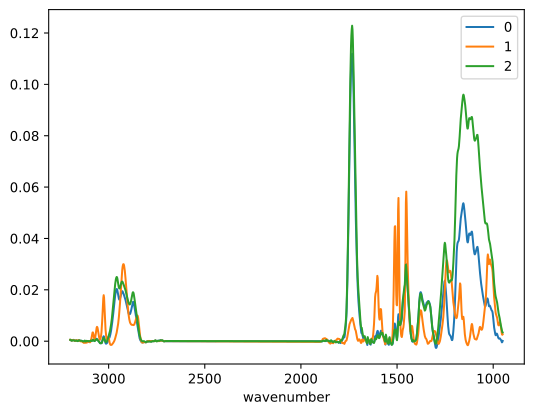
Since this is an image, we can also show the distribution of clusters as an image. Here, we can use imshow again.
First, we need to reshape the cluster vector to have a rectangular shape:
img = np.reshape(cluster,(64,64))
img
array([[1, 1, 1, ..., 0, 0, 0],
       [1, 1, 1, ..., 0, 0, 0],
       [1, 1, 1, ..., 2, 0, 0],
       ...,
       [1, 1, 1, ..., 2, 0, 0],
       [1, 1, 1, ..., 0, 0, 0],
       [1, 1, 1, ..., 2, 0, 2]])
Now we are ready to plot:
fig = plt.figure()
ax = fig.add_subplot()
mappable=ax.imshow(img);
fig.colorbar(mappable)
<matplotlib.colorbar.Colorbar at 0x7f1da776df70>
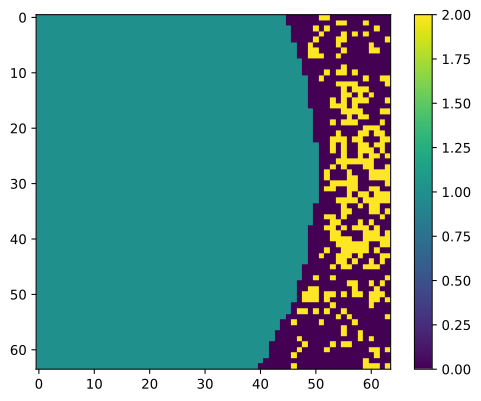
We can already see a pretty nice structure in this image. It would be nice to make the relationship between clusters in the plot and in the image a bit more obvious though. We will change the color map to just have three levels that correspond to the line colors in the plot. And, to make the relationship very obvious, we will also combine both plots in the same figure.
For each plotted line, we get the color that was used and put it in a list. Then we use those colors to create a color map.
from matplotlib.colors import ListedColormap


fig = plt.figure()
ax_spec = fig.add_subplot()
ax_img = ax_spec.inset_axes([0,.5, .5,.5])

# create list to hold lines
lines = []

# we reuse this code
for c in np.unique(cluster):
    lines.extend(ax_spec.plot(wn, np.mean(A[cluster==c], axis=0),
                              label="cluster {}".format(c)))

# list comprehension to get a list of colors
colors = [l.get_color() for l in lines]


cm = ListedColormap(colors)

mappable=ax_img.imshow(img, cmap=cm, vmin=-.5, vmax=np.amax(img)+.5);


# anchor="NW" moves the image to the top left corner
ax_img.set_aspect(1, anchor="NW")
ax_img.set_axis_off()

ax_spec.legend(loc='upper center')
ax_spec.set_xlabel("wavenumber")
ax_spec.invert_xaxis()
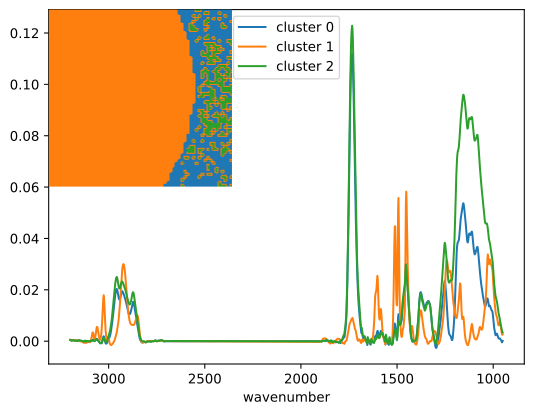
Looking at this image more closely, it seems a bit weird, that all the green areas are enclosed by orange rings. This might be a hint, that we actually need four clusters instead of three. It could also mean, that we need to spend some time preprocessing the data - maybe by normalizing spectra.
There are a million things we haven’t done. But given the right tools, they are just a few lines of code away.
9.4. Summary
9.4.1. 1. polynomial fits
polynomial.polyfit to fit, polynomial.polyval to evaluate.
9.4.2. 2. sklearn
Same procedure every time:
instantiate
pls = PLSregression()fit
pls.fitpredict
plt.predict
Cross-validation to optimize parameters using
GridSearchCVpipelines to include preprocessing
Never forget: Getting things to work the first time might be hard. But when you have gotten things to work once, you can repeat them at the push of a button for any similar task:
def load_image(path):
    """Loads rowwise FITR image from CSV file"""
    bead = np.genfromtxt(path)
    wn = bead[0]
    A = bead[1:]
    return wn, A
def wavelength_select(wn, A, mask=True):
    """Select useful wavelength ranges"""
    if mask:
        mask = ~((wn>1900)&(wn<2700)|(wn>3200)|(wn<950))
        wn = wn[mask]
        A = A[:,mask]
    return wn, A
def cluster_image(wn, A, n_clusters=3,plot=True,title=None):
    """Cluster hyperspectral image"""
    model = AgglomerativeClustering(n_clusters=n_clusters)
    cluster = model.fit_predict(A)
    if plot:
        fig = plt.figure()
        ax_spec = fig.add_subplot()
        ax_img = ax_spec.inset_axes([0,.5, .5,.5])
        lines = []
        for c in np.unique(cluster):
            lines.extend(ax_spec.plot(wn, np.mean(A[cluster==c], axis=0),
                                      label="cluster {}".format(c)))
        colors = [l.get_color() for l in lines]
        cm = ListedColormap(colors)
        img = np.reshape(cluster, (64,64))
        mappable=ax_img.imshow(img, cmap=cm, vmin=-.5, vmax=np.amax(img)+.5, interpolation="none");
        ax_img.set_aspect(1, anchor="NW")
        ax_img.set_axis_off()
        ax_spec.legend(loc='upper center')
        ax_spec.set_xlabel("wavenumber")
        ax_spec.invert_xaxis()
        if title is not None:
            ax_spec.set_title(title)
        return cluster, model, fig
    return cluster, model
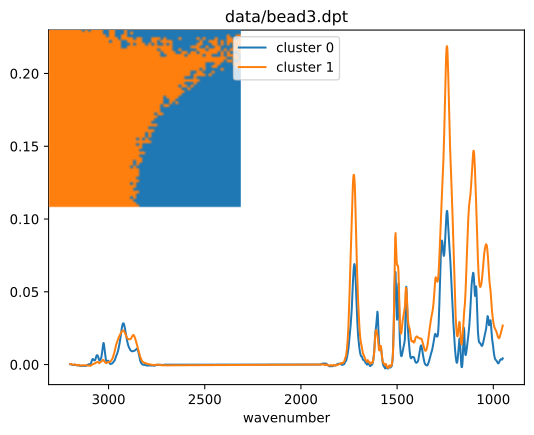
for image_filename in ["data/bead1.dpt", "data/bead2.dpt", "data/bead3.dpt"]:
    wnA = load_image(image_filename)
    wnA = wavelength_select(*wnA)
    cluster_image(*wnA,n_clusters=2,title=image_filename)